How it works
GM Cheems is a coach, not a proxy. The engine only ever suggests moves, it never plays for you. Use the suggestions to understand a position and improve, not to move on autopilot.
Supported sites
The overlay runs on Chess.com and Lichess. Open a game on either site and the GM Cheems sidebar appears on the right.
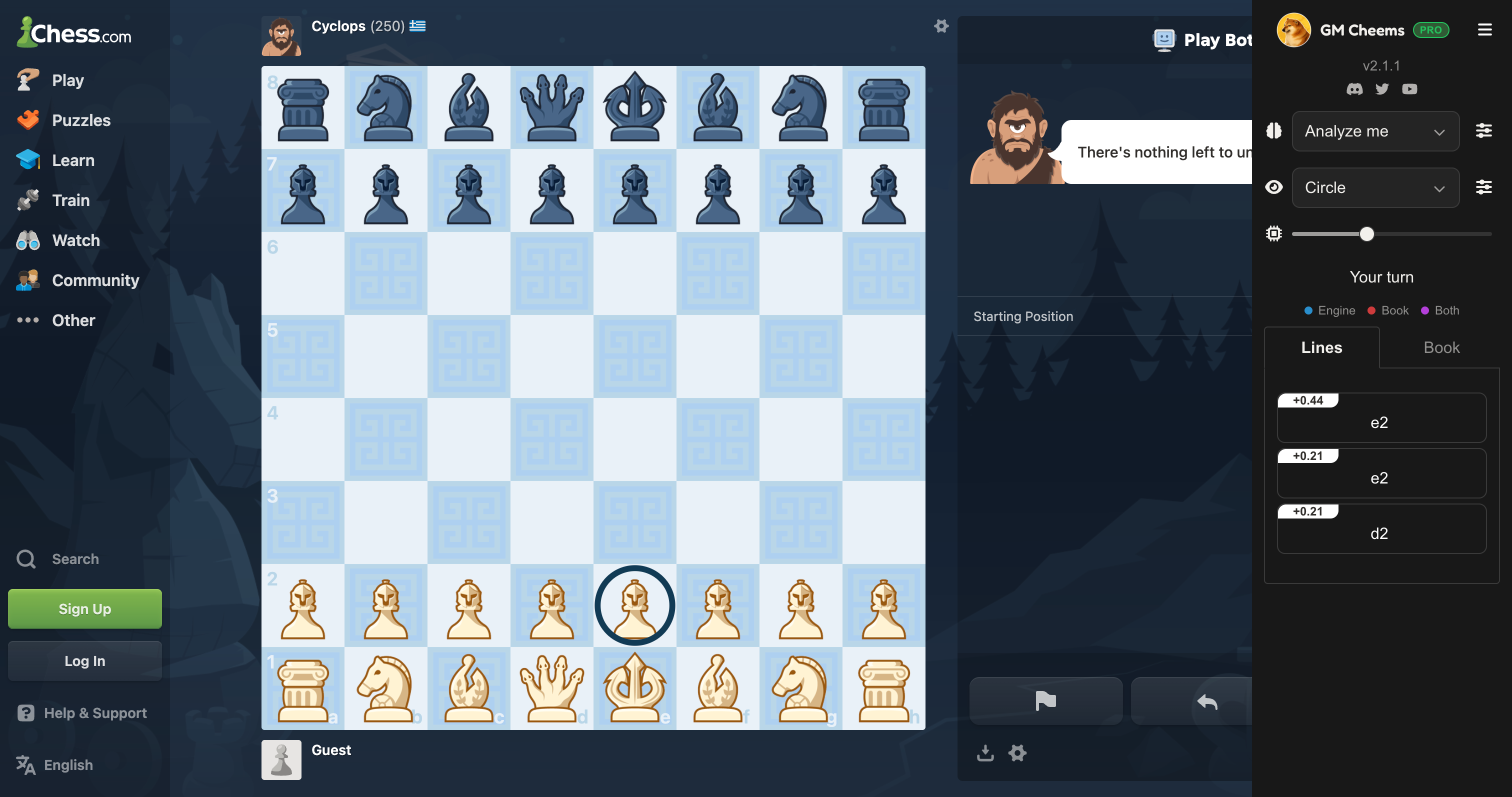
The sidebar
When the sidebar is collapsed it shows as a thin vertical GM Cheems tab on the edge of the page. Click it to expand.
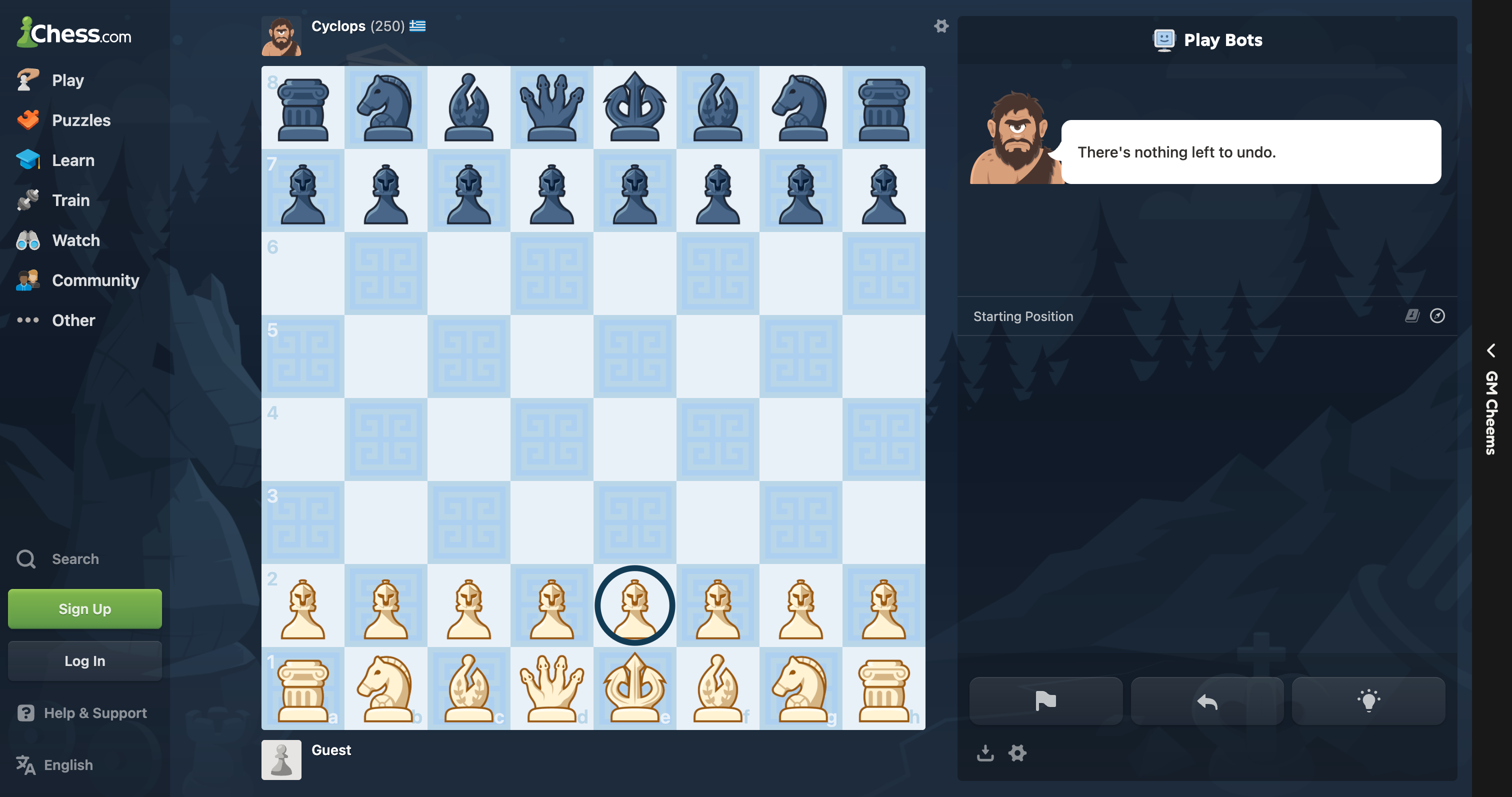
The expanded sidebar has three control rows at the top, then the analysis tabs below. Each control row is an icon, a primary control, and a sliders icon that opens a popover with the secondary options for that row.
| Row | Icon | Controls |
|---|---|---|
| Analysis | brain | Whose moves to analyze; number of lines; opening book |
| Engine | chip | Engine strength — see Engine strength |
| Tactical View | eye | Arrows, evaluation bar, square highlights — see Tactical View |
Choosing what to analyze
The Analysis row's dropdown picks whose moves the engine suggests for:
- Analyze me — suggestions on your turn
- Analyze opponent — suggestions on your opponent's turn
- Analyze both
- Off
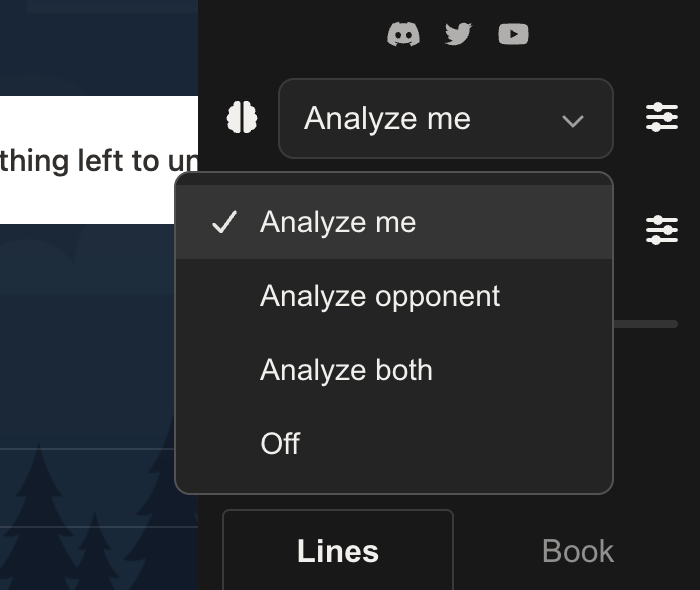
Analyzing your own moves works on the free plan. Analyzing your opponent and running multiple lines at once are part of Live Analysis (Pro) — free installs get a limited trial, counted down by the ring around the brain icon.
Open the sliders popover on the Analysis row to set Number of Lines (up to 5) and pick an opening book.
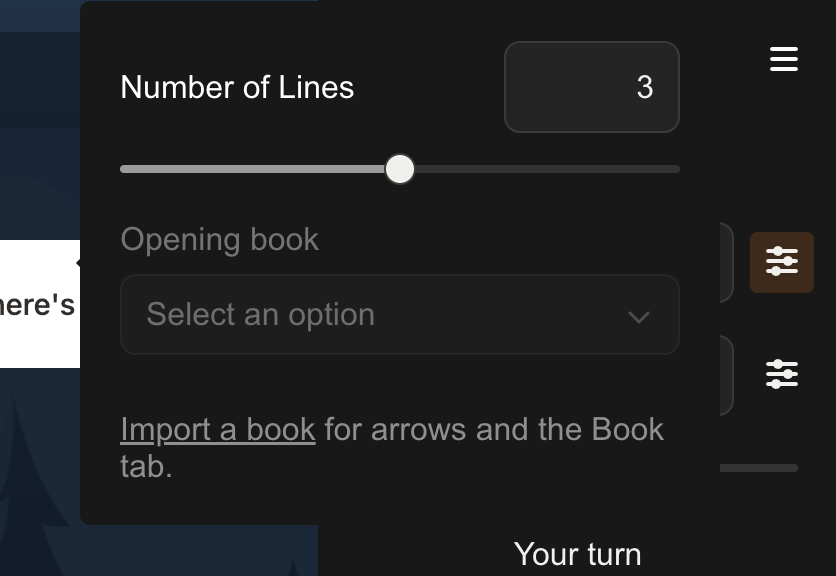
Reading the analysis
Below the controls is a game-status line ("Your turn", "Running Analysis…", "Game Over!") and two tabs:
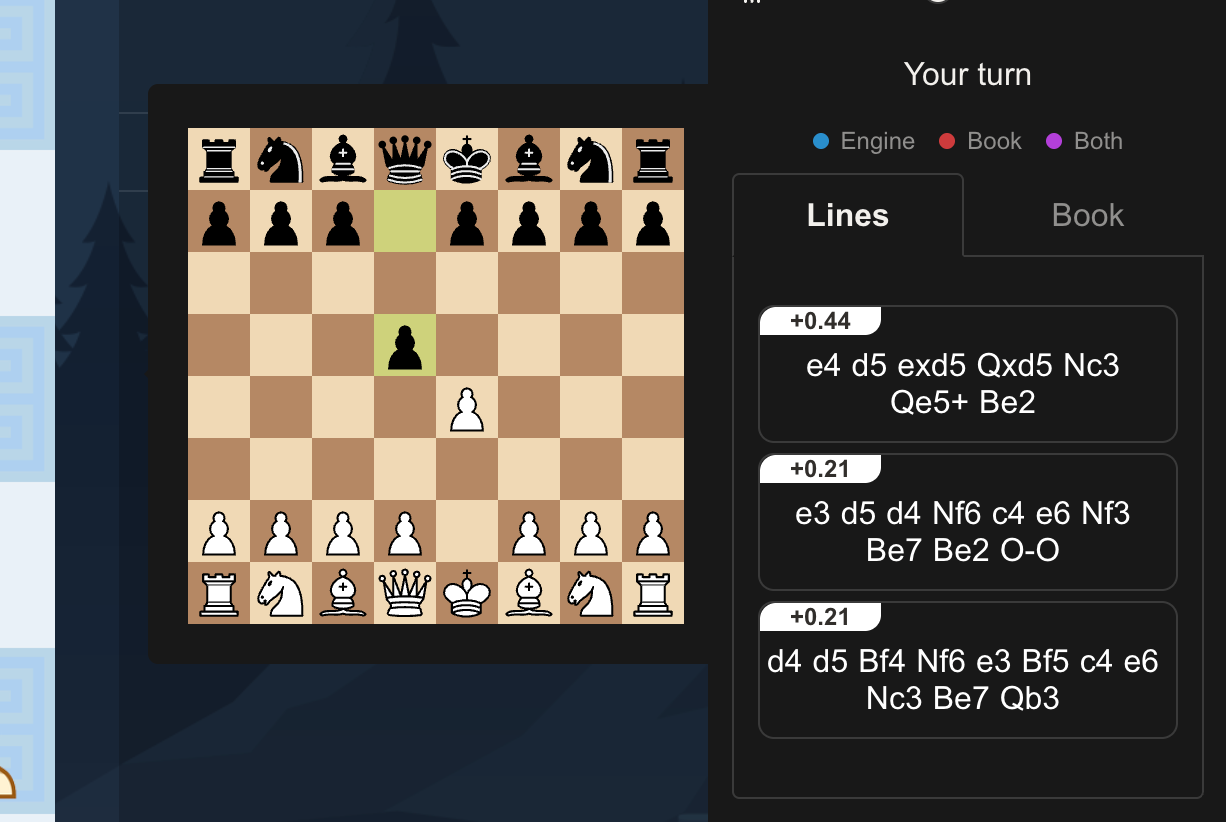
- Lines — the engine's top lines, each with its score in centipawns.
- Book — moves from the selected opening book that match the current position, if any.
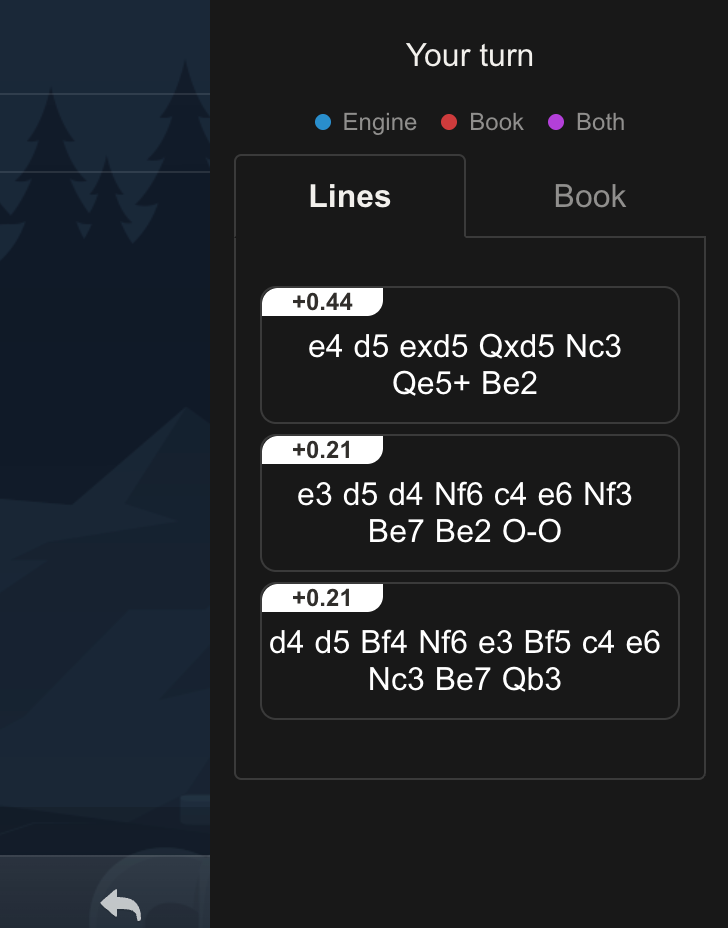
Hover any move in a line to pop up a preview of the board at that point, so you can see how the line plays out.
Menu
The hamburger menu at the top of the sidebar has Settings (opens the settings page), Sign in / out, About, Changelog, Documentation, and Report a Bug.