Tactical View
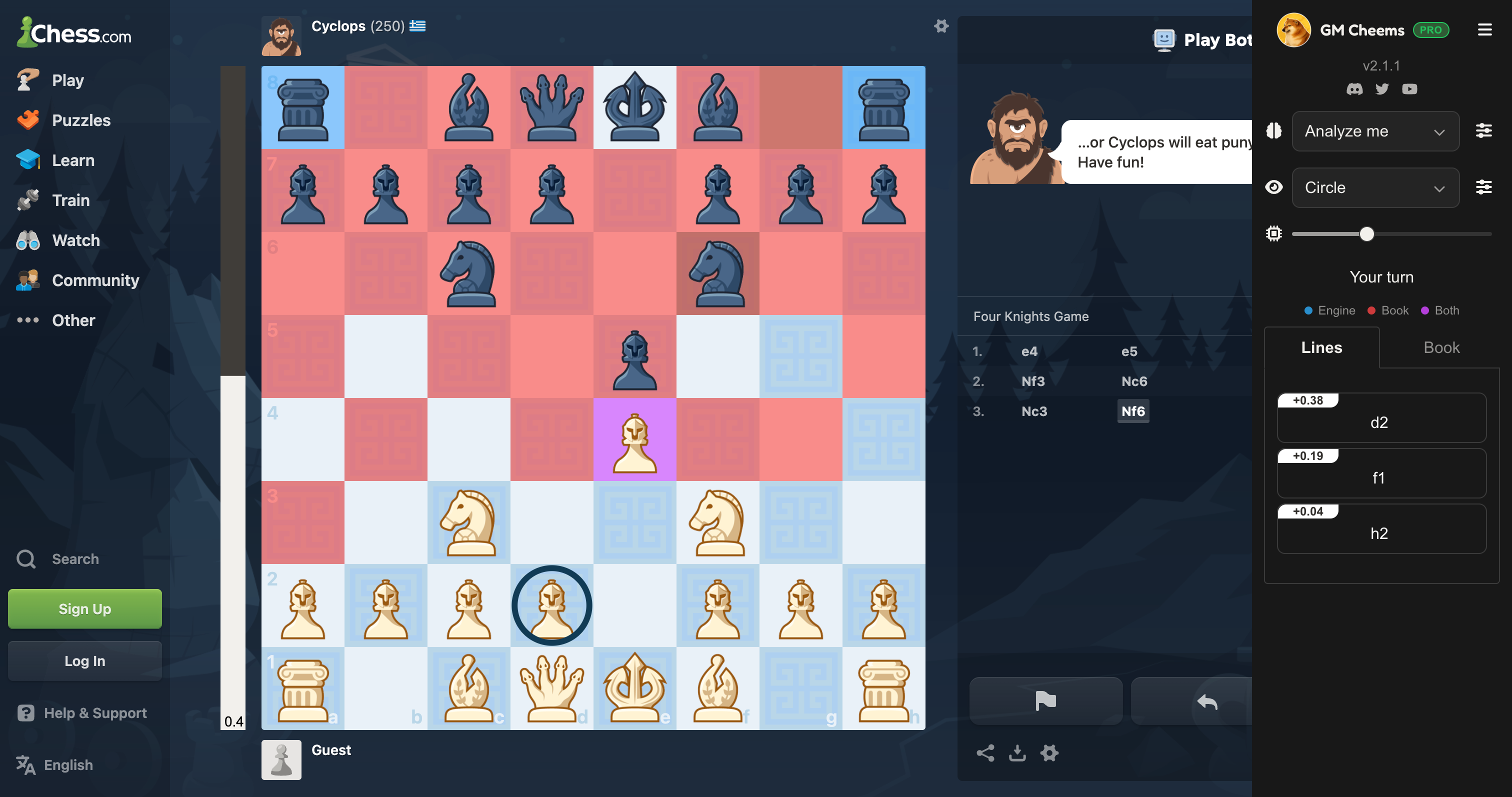
Tactical View draws the engine's thinking straight onto the board: move arrows, an evaluation bar, and square highlights. Free installs get a limited trial, counted down by the ring around the eye icon on the sidebar.
Arrows
The Tactical View row's dropdown sets how engine hints are drawn. It defaults to Circle:
- Circle (default) — rings the destination square of the best move only.
- Arrow — draws the move as an arrow, and follows the rest of the engine's line with more arrows.
- Off
If you want to see the whole line played out on the board, not just the next move, choose Arrow. Circle only ever marks a single square.
Open the sliders popover on the row for the rest:
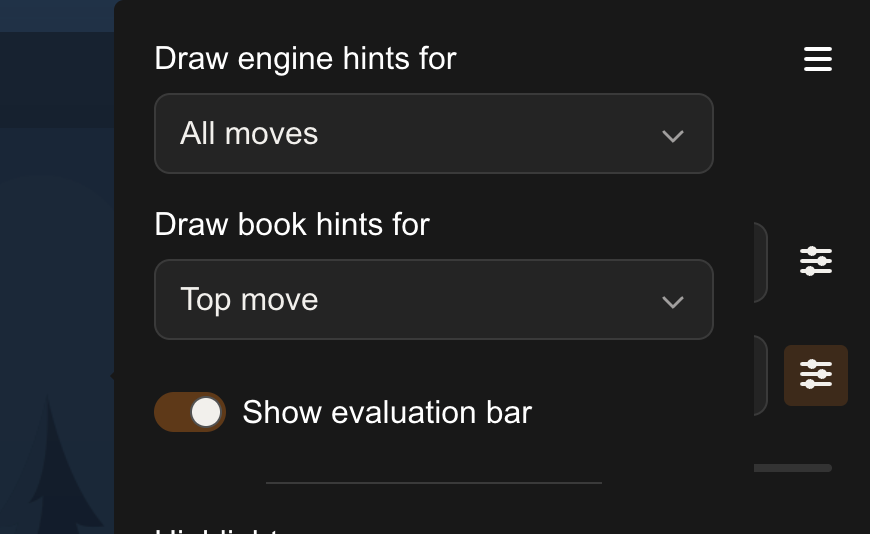
- Draw engine hints for — Top move (best move only) or All moves (every line you're computing).
- Draw book hints for — Top move, All moves, or Off.
Engine arrows are blue, book arrows are red, and a move that's both the engine's pick and a book move is purple. The sidebar shows a small colour key when arrows are on.
Evaluation bar
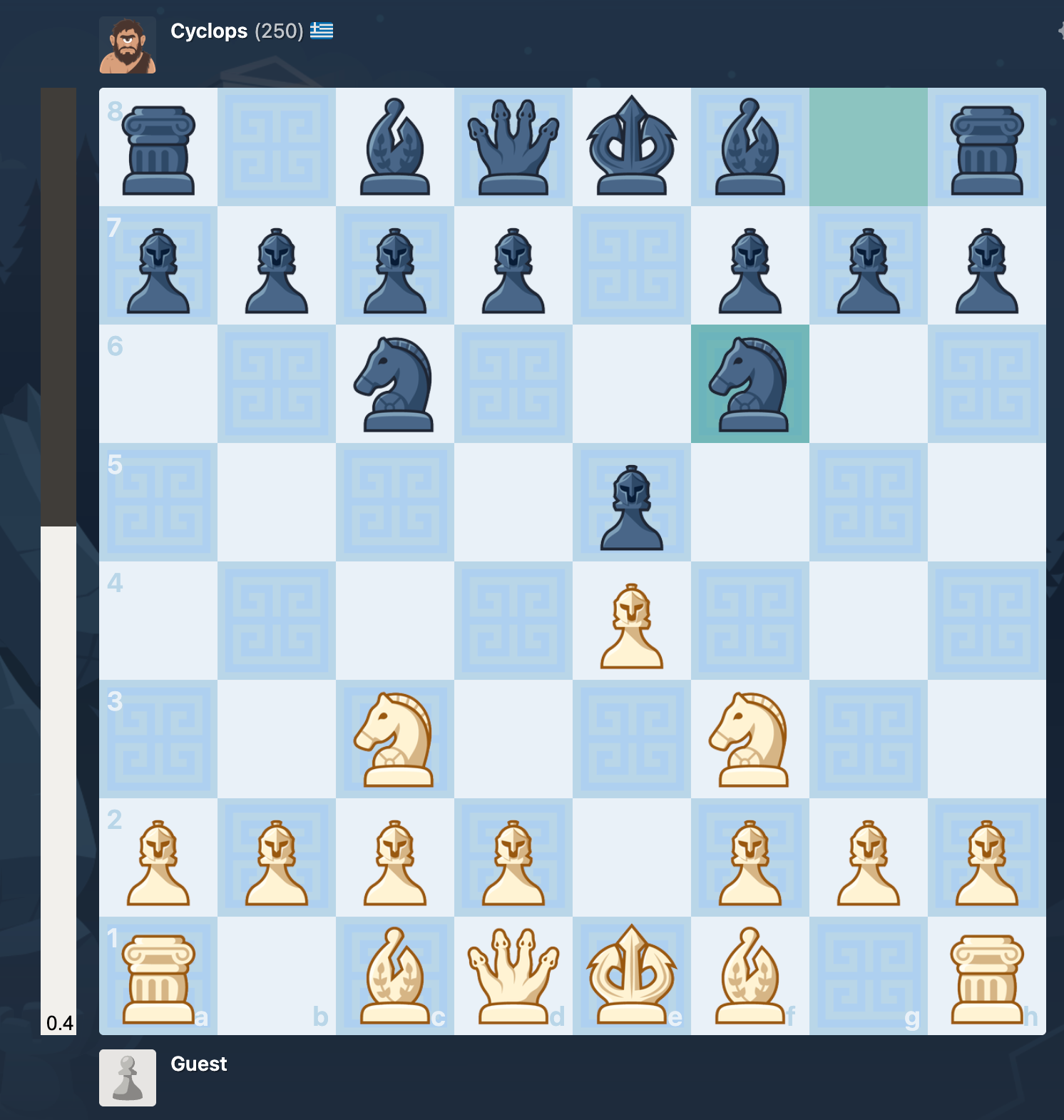
Show evaluation bar (in the sliders popover) adds a vertical bar beside the board showing who's winning and by how much. It updates as the game goes.
Square highlights
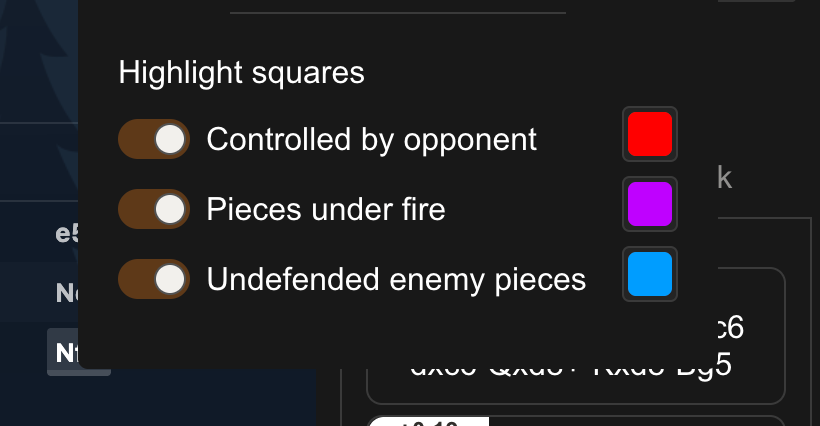
Also in the sliders popover — each has its own on/off switch and colour:
- Controlled by opponent — squares your opponent attacks.
- Pieces under fire — your pieces currently attacked.
- Undefended enemy pieces — your opponent's pieces with no defender.
Each of these can also be toggled with a keyboard shortcut.